How to activate codes in the EA app and Ubisoft Connect
Many EA and Ubisoft games are activated in the publisher's own app. Here are the steps for both.
By Magnus2 min read
If the product page says EA app or Ubisoft Connect, the code is activated with the publisher, not on Steam. You need a free EA or Ubisoft account, and the game downloads through their app on your PC.
EA app
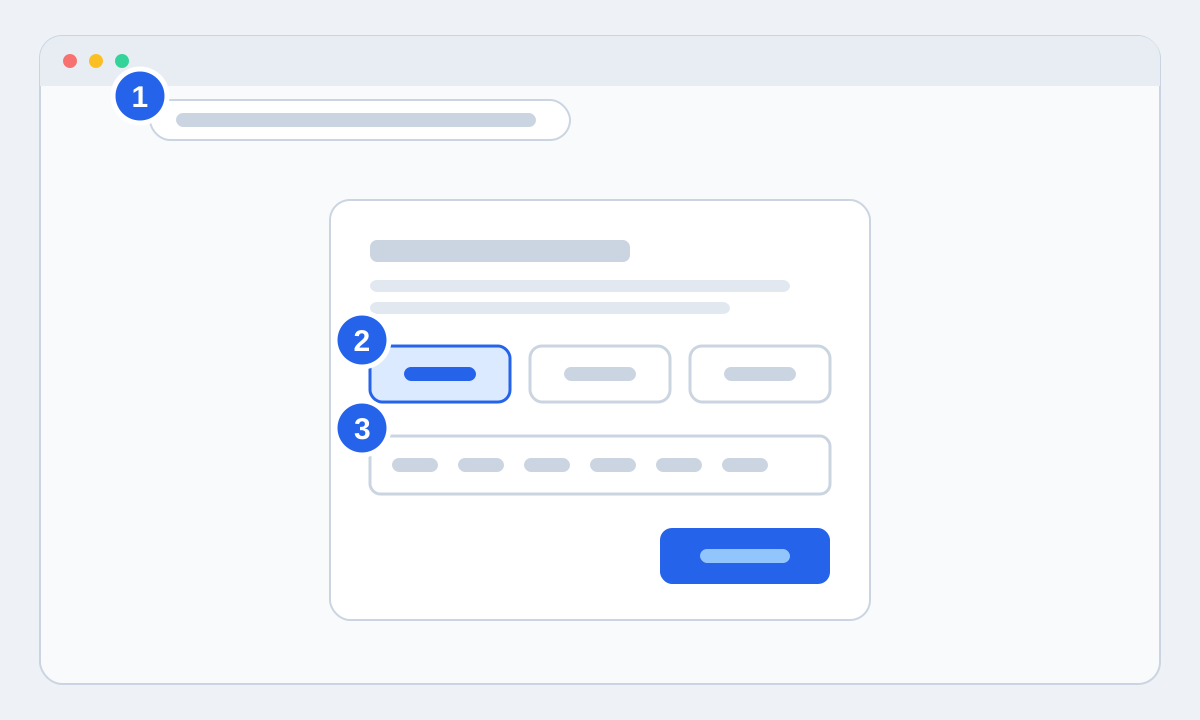
- 1Go to ea.com/redeem in your browser and sign in with your EA account. If you don't have one, create it there.
- 2Choose the redeem button for PC.
- 3Paste the code and click Next.
- 4Open the EA app on your PC and sign in with the same account. The game is in your library, ready to install.
Codes for expansions and add-on packs, for example for The Sims 4, work the same way. They're added to your account and show up under the game in the EA app.
Ubisoft Connect
- 1Download Ubisoft Connect from ubisoft.com if you don't have it, and sign in with your Ubisoft account.
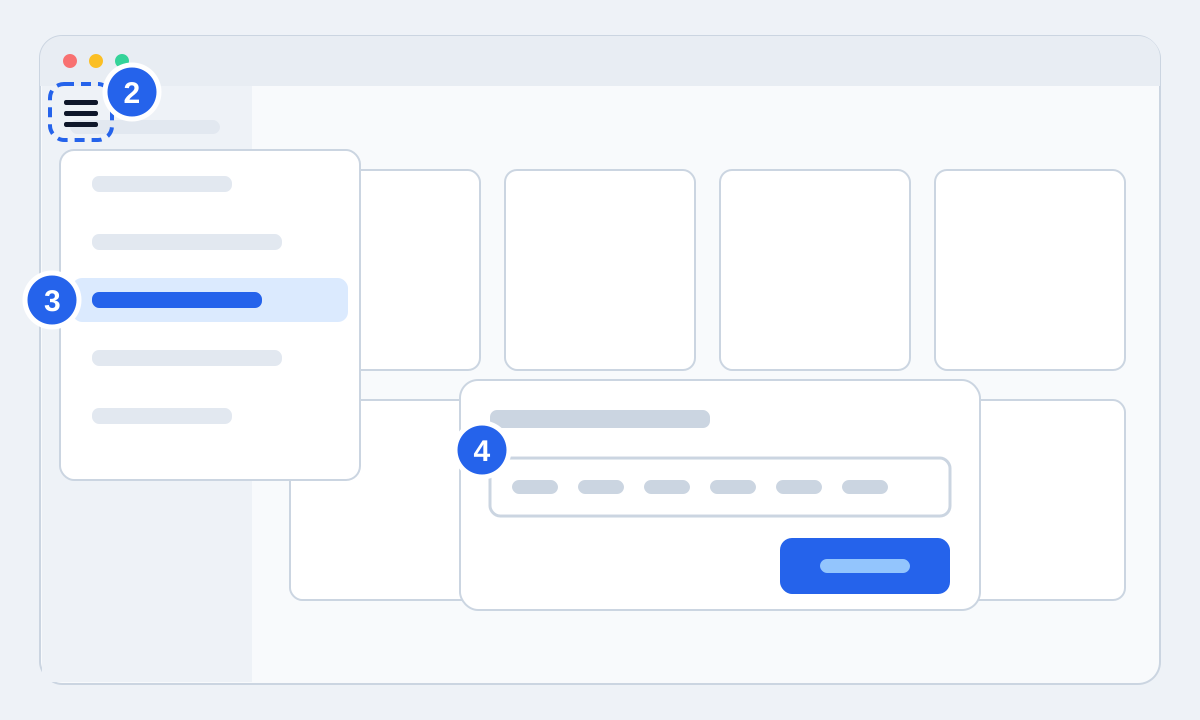
- 2Click the three-line menu icon in the top left.
- 3Choose "Activate a key".
- 4Paste the code and click Activate. The game is added to your library, where you start the install.
Games that ask for a key when you launch them
Some older Ubisoft games ask for a key the first time you start them. That's the same code you got from us. If you've already activated it, you can find it again in Ubisoft Connect under the game's properties.